

Hush Gallery - Hide Photos & Videos
Private Photo Gallery
Hide and protect photos and videos on your device. Share from WhatsApp or Photos into a private vault, organize with tags, lock with PIN or biometrics (Premium), and optionally back up to iCloud or Google Drive. No account required for local use.
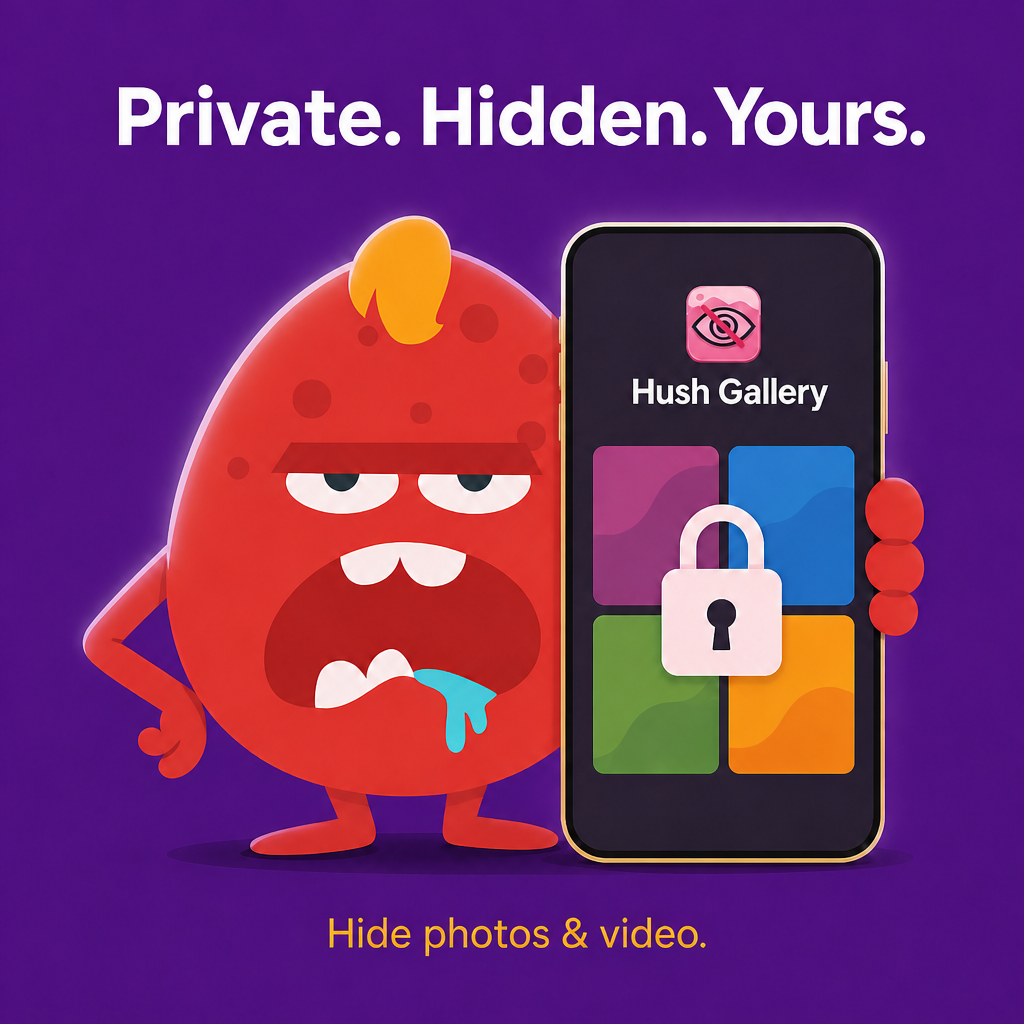
Key Features
Privacy First
Your photos are stored securely in the app's private directory
- • Local-first storage in app's private directory
- • Optional cloud backup (encryption coming soon)
- • PIN/password and biometric authentication
- • No access by other apps
Secure Storage
All media stored locally with optional cloud sync
- • Private app storage
- • Cloud backup available (encryption coming soon)
- • Import from system gallery
- • Export with metadata preservation
Organized Collections
Manage your photos and videos efficiently
- • Custom folder management
- • Unlimited tags (Premium) or up to 5 tags (Free)
- • Multiple selection for batch operations
- • Separate views for photos and videos
- • Search and filter capabilities
- • Metadata preservation
App Lock
Protect your gallery with multiple security options
- • PIN/password protection
- • Biometric authentication (Face ID/Touch ID)
- • Auto-lock after inactivity
- • Secure entry point
Cloud Backup
Optional cloud backup for your media (encryption coming soon)
- • iCloud backup (iOS) or Google Drive backup (Android)
- • Selective backup
- • Automatic sync
- • Encryption feature coming soon
Import/Export
Easy media management
- • Share extension - Hide photos from WhatsApp, Messages, Gallery, and other apps
- • Import from system gallery
- • Export back with metadata
- • Batch operations
- • Format preservation
Screenshots & Guides
Real app screens from Hush Gallery — gallery, tags, security, backup, and onboarding.
App screens
Private gallery grid
Browse photos and videos in a secure grid. Filter by All, Untagged, or custom tags. Swipe to delete with undo.
Sort your library
Tap the sort icon to order by date, size, import date, name, or media type.
Filter by tags
Create tags like Vacation or Family. Tap a chip to filter; long-press to rename or reorder.
App Lock
PIN (4 or 6 digits) plus Face ID or Touch ID. Auto-lock after inactivity (Premium).
Cloud backup
Optional backup to iCloud (iOS) or Google Drive (Android). Manual backup, restore, and reminders (Premium).
Premium
One-time purchase: remove ads, unlimited tags, App Lock, and cloud backup access.
Settings
Security, encryption, backup, Premium, language, theme, account, and About in one hub.
First launch tour
Privacy, tags, and optional cloud backup explained before you import.
Private & secure
First-launch onboarding: your media stays on your device unless you enable backup.
Organize with tags
Onboarding explains custom tags to filter and group photos and videos.
User manual
Step-by-step guide for import, tags, security, backup, and sharing.
1. Getting started
- Install Hush Gallery from the App Store or Google Play.
- Accept the first-launch privacy notice — media stays on your device by default.
- Complete or skip the onboarding tour (private storage, tags, optional backup).
- Tap + in the gallery to import your first photos or videos.
2. Gallery & filters
- Open the gallery grid to browse thumbnails.
- Use All, Untagged, or custom tag chips to filter.
- Tap ⇅ (sort) for date, size, import date, name, or type.
- Swipe a row left to delete; undo appears before permanent removal.
3. Import media
- Tap + → choose Photo library or Camera.
- Files are copied into Hush Gallery private storage.
- Optionally delete originals when the import flow offers it.
- From other apps: Share → Hush Gallery, then open Hush Gallery to complete.
4. Viewer & selection
- Tap a thumbnail for full-screen view; pinch to zoom.
- Long-press a thumbnail for selection mode.
- Select multiple items to export, share, tag, or delete.
- Export to Gallery copies items back to the system Photos app.
5. Tags
- Create tags from the tag bar menu or during import.
- Assign multiple tags per item.
- Long-press a tag chip to rename, reorder, or delete.
- Free tier: up to 5 tags; Premium: unlimited.
6. App Lock (Premium)
- Settings → Security → App Lock.
- Set a 4- or 6-digit PIN; enable Face ID / Touch ID if available.
- Choose auto-lock: Immediately, 1, 5, or 15 minutes.
- Forgot PIN? Use Restore PIN if you backed up PIN while signed in.
7. Encryption
- Settings → Encryption to enable optional on-disk encryption.
- Encryption key is stored in the device secure enclave / keystore.
- When enabled, media files are encrypted before being written locally.
8. Cloud backup (Premium)
- Sign in under Settings → Account when prompted.
- Settings → Backup → Backup Now for manual sync.
- Enable Auto Backup and reminder frequency if offered.
- New device: sign in and tap Restore from Settings or the first-run prompt.
9. Premium & ads
- Open Premium from Settings or the gallery banner.
- One-time purchase removes ads and unlocks Premium features.
- Restore purchases with the same Apple ID or Google account.
- Free tier: watch a rewarded ad for temporary ad-free time (when offered).
10. Share Extension (iOS)
- In Photos, select items → Share → Hush Gallery.
- The extension stages files; open Hush Gallery to import.
- If import does not appear, open the app manually — import runs on launch.
Tips & tricks
Get the most from your private gallery.
Hide from WhatsApp fast
Long-press a photo in WhatsApp → Share → Hush Gallery. Faster than saving to Camera Roll first.
Use tags early
Create tags when you import so filtering stays easy as your vault grows.
Short auto-lock
Set App Lock to Immediately or 1 minute if you hand your phone to others often.
Backup before a new phone
Run Backup Now before replacing your device; restore after signing in on the new install.
Export without losing vault copy
Export to Gallery copies files out; originals remain in Hush Gallery until you delete them.
Restore purchases
Reinstalled? Premium → Restore purchases with the same store account.
12 languages + RTL
Settings → Language includes Hebrew and Arabic with full RTL layout support.
Send feedback in-app
Settings → About → Send feedback, or email [email protected] before leaving a store review.
Frequently Asked Questions
Answers about privacy, import, Share extension, tags, App Lock, backup, Premium, and troubleshooting. Full list also on Support.
What is Hush Gallery?+
Hush Gallery is a private photo and video gallery for iOS and Android. Media is stored in the app's private storage (separate from your public Photos app), organized with tags, protected with optional Premium app lock (PIN/biometric), and optionally backed up to iCloud (iOS) or Google Drive (Android). Package: com.zuki.apps.hushGallery.
Has Hush Gallery been covered in the press?+
Yes. On 1 December 2014 Android Authority named the original Android Hush Gallery Indie App of the Day (Joe Hindy). That review describes the 2014 DreamBit Apps listing (com.dreambit.hushgallery), not the current Zuki Apps build. Product page: https://zukiapps.com/hush-gallery
How do I import photos and videos into Hush Gallery?+
Open Hush Gallery and tap the + (Add) button. Choose Import from Gallery, Take Photo, or Take Video. Select one or more items from your device library. After import you can optionally delete the originals from your public gallery. You can also share directly from WhatsApp, Messages, Photos, or other apps using Share → Hush Gallery.
How does Share to Hush Gallery work on iPhone?+
In Photos, WhatsApp, or any app: select media → Share → Hush Gallery. The iOS Share Extension copies files to secure app storage and opens Hush Gallery. On first launch after sharing, accept the privacy notice if shown, then confirm import. You may be asked whether to delete originals from the Photos library.
How does Share to Hush Gallery work on Android?+
Select photos or videos in any app → Share → Hush Gallery. The app receives the shared files and imports them into private storage. Grant photo access when prompted. Optional: delete originals after import via the in-app dialog or Settings → Deletion → Auto-Delete Source Files.
Can I delete originals from my public gallery after import?+
Yes. After each import, Hush Gallery can ask: Delete original files from your photo gallery? Enable Settings → Deletion → Auto-Delete Source Files to skip the prompt. Deletion uses Photos library asset IDs on iOS when available; if identification fails, you will be asked to delete manually for safety.
How do tags work in Hush Gallery?+
Create custom tags from the tags bar (Manage Tags). Filter the grid with All, Untagged, or any tag. In selection mode, assign tags to multiple items at once. Free users: up to 5 tags. Premium: unlimited tags. Reorder tags in edit mode.
What is the difference between Free and Premium?+
Free: local private gallery, import/export, up to 5 tags, banner ads. Premium (one-time purchase): remove all ads, unlimited tags, App Lock (PIN/biometric/auto-lock), cloud backup, and future premium features. Watch a rewarded ad for 24 hours ad-free on the free tier.
How do I set up App Lock?+
Premium required. Go to Settings → Security → App Lock. Set a 4- or 6-digit PIN and optionally enable Face ID / Touch ID / fingerprint. Configure auto-lock timeout (immediately, 1, 5, or 15 minutes). Verified email is required for PIN recovery.
I forgot my PIN. How do I recover access?+
On the lock screen tap Forgot PIN. Sign in with the verified email used for recovery, or restore your PIN from an encrypted cloud backup if enabled. Clearing lock settings removes the PIN but does not delete your media.
How does cloud backup work?+
Premium feature. Settings → Backup → Backup Now or enable Auto Backup. iOS uses iCloud; Android uses Google Drive. Restore on a new device from Settings or during onboarding. Keep the app open during backup/restore.
Is my media encrypted?+
Media is stored in the app's private directory inaccessible to other apps. Client-side encryption for local files and cloud backup is Coming Soon in Settings. Cloud backup uploads to your own iCloud/Google account when enabled.
Where are my photos stored? Can other apps see them?+
Imported files live in Hush Gallery's private app storage on your device—not in the public camera roll unless you export them. Other apps cannot browse the vault without your unlock PIN/biometric (Premium).
How do I export photos back to my device gallery?+
Open a photo/video → Export to Gallery, or select multiple items in selection mode → Export. Metadata is preserved where supported. Move to Gallery exports and optionally removes the copy from Hush Gallery.
How does swipe-to-delete work?+
Swipe a thumbnail left to delete. A snackbar appears for 5 seconds with Undo. Confirm deletes permanently from Hush Gallery (not from the public gallery unless you imported with delete-original).
What languages does Hush Gallery support?+
12+ languages including English, Hebrew, Arabic, German, Spanish, French, Italian, Portuguese, Russian, Japanese, Korean, and Chinese. Change in Settings → Language.
What is the first-launch privacy notice?+
On first open, Hush Gallery shows a privacy notice explaining that media stays on your device and changes can be permanent. Tap Continue after accepting, or Not now to defer (shown again next launch).
How do I delete my account?+
Settings → Account → Delete Account. See https://zukiapps.com/hush-gallery/delete-account for step-by-step instructions.
What happens if I uninstall the app?+
Local private storage is removed with the app unless you exported files first. If cloud backup was enabled, reinstall, sign in, and use Restore from Backup.
Does Hush Gallery show ads?+
Free tier shows banner ads and occasional interstitials. Premium removes all ads. Free users can watch a rewarded ad for 24 hours without ads.
How do I contact support?+
Email [email protected] or visit https://zukiapps.com/hush-gallery/support. Privacy: https://zukiapps.com/hush-gallery/privacy. Terms: https://zukiapps.com/hush-gallery/terms.
Does Zuki Apps have access to my photos?+
No. Hush Gallery stores media locally on your device in private app storage. We do not upload or access your files unless you explicitly enable cloud backup to your own iCloud or Google Drive account.
Can I use Hush Gallery without signing in?+
Yes. The gallery, import, tags, and export work offline without an account. Sign-in is only needed for cloud backup and PIN restore via backup.
What are All and Untagged filters?+
All shows every item in your vault. Untagged shows only items with no custom tags assigned. Custom tag chips filter to one label at a time.
How do I sort the gallery?+
Tap the sort icon (⇅) in the gallery app bar. Choose date, file size, import date, name, or media type (photos vs videos first).
Does import remove photos from my camera roll?+
By default, import copies files into Hush Gallery; originals stay in Photos unless you choose delete-original when offered or remove them yourself.
Is cloud backup required?+
No. Backup is optional. Your vault works entirely on-device without backup or an account.
What is included in a backup?+
Backup includes media files and metadata such as tags. Platform behavior depends on iCloud (iOS) or Google Drive (Android) and your signed-in account.
How do I restore a Premium purchase?+
Open Premium → Restore purchases. Use the same Apple ID or Google Play account used for the original purchase.
Why does the app ask for my PIN when I return?+
App Lock re-locks when you background the app or after your chosen auto-lock timeout. This prevents unauthorized access to your vault.
Thumbnails look empty or broken — what should I do?+
Force-quit and reopen Hush Gallery. If files were moved outside the app, metadata may be stale — re-import the media if needed.
Backup failed — how do I fix it?+
Check Wi‑Fi or cellular data, confirm you are signed in, verify cloud storage space, and ensure Premium/backup eligibility for your account.
Share Extension import did not show up+
Open Hush Gallery manually; pending share imports run on launch. Retry sharing from Photos if the share sheet reported an error.
💼 Perfect for Business Use
Are you a business owner who uses your phone for both work and personal life? Hush Gallery is the perfect solution to keep your business photos separate from your personal ones.
Business Benefits
- Create dedicated tags for product photos, client documents, marketing materials, team photos, and financial documents
- Never worry about accidentally showing personal photos during a business presentation
- Keep work files separate from family memories
- Access business photos during meetings without exposing personal content
- Share business photos with colleagues without showing personal files
🎯 Real-World Example
You run a small business and use your phone for everything. You take photos of products, receipts, client meetings, and also personal family photos. With Hush Gallery, you can:
- 1.Create a "Business" tag for all work-related photos
- 2.Create a "Personal" tag for family photos
- 3.Keep them completely separate and secure
- 4.Access business photos during meetings without exposing personal content
- 5.Share business photos with colleagues without showing personal files
📱 How to Use
Select Photos
Select photos from any app (Gallery, WhatsApp, etc.)
Share to Hush Gallery
Tap "Share" and choose "Hush Gallery"
Stored privately
Media is copied to Hush Gallery's private vault on your device
Organize with Tags
Create tags to organize (Business, Personal, Family, etc.)
Secure Access
Access with PIN or biometric authentication
🌍 Multi-Language Support
Hush Gallery supports 12+ languages including English, עברית, Русский, العربية, Français, Italiano, Español, Português, 中文(简体), Deutsch, 日本語, 한국어, and more.
🔒 Privacy Guarantee
Your privacy is our top priority. All files are stored securely in the app's private directory, we never access your files, and your data is never sold to third parties. Encryption feature coming soon.
Premium Features
Unlock advanced features with a one-time purchase
Free Features
- • Basic gallery functionality
- • Local private storage
- • Import, export, and share
- • Up to 5 tags
- • Banner ads (watch ad for 24h ad-free)
Premium Features
- • Remove all ads
- • Unlimited cloud backup
- • Unlimited tags
- • App Lock (PIN + biometric)
- • All future premium features
💰 One-time purchase: $3.00
Unlock all premium features forever with a single payment
✅ Available Now
Available on App Store and Google Play
Version
1.0.18+21
Status
Available on App Store & Google Play
Download Now
Get Hush Gallery from the app stores


Important Links
More from Zuki Apps
Explore other free iOS & Android apps from the same developer.


